
This is an old revision of the document!
Table of Contents
Back to Tracker Application Start Page
Company Admin Management
Department Management
Create Department
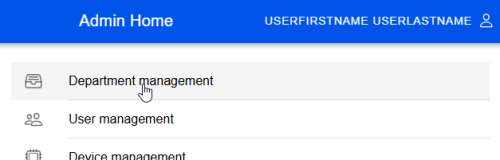
to create a department we should enter the department management via home menu
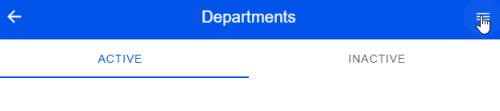
then we can open a action menu
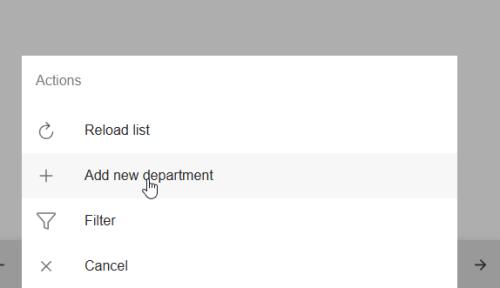
then we can access department creation via opened actions
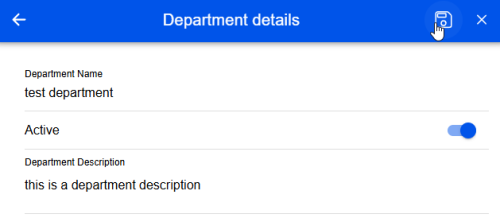
now we can enter necessary information and then save button will be activated. so we can save our new department
Edit Department
To edit department we need to access first to the department which we want do modify.
company admin home » department management » select department to modify
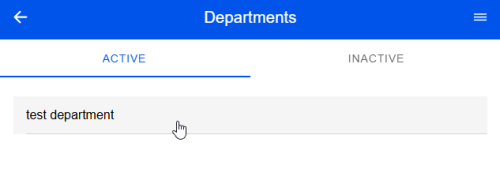
after selection of department we can access department editing via action buttons, which we can open via button which stays at the top right.
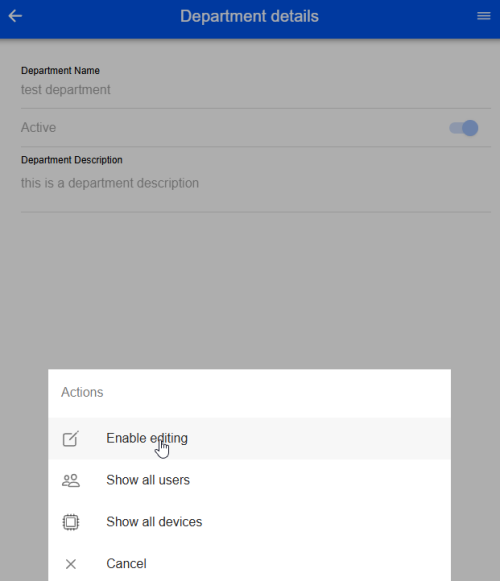
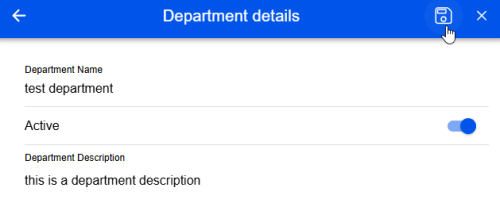
then edit mode is activated now we can do our chances and save or we can cancel via X button
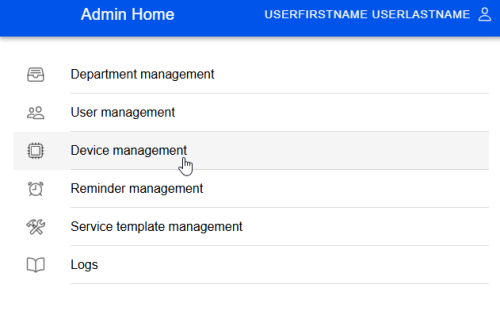
Device Management
to show the list of devices we can select the device management menu point at home page.
Create Device
The devices can be created only under selected departments. to access this menu, we should use this navigation way
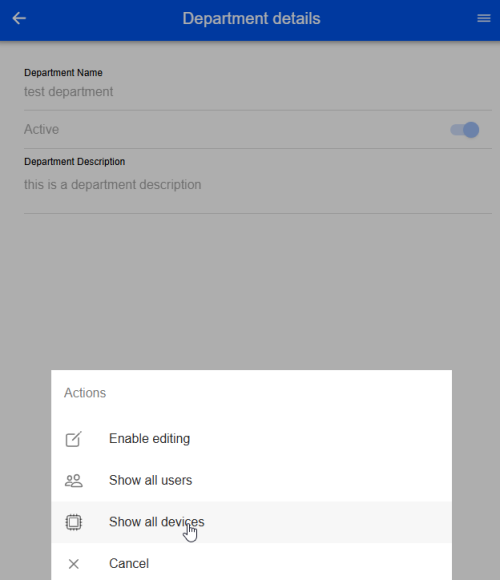
company admin home » department management » select department » open action menu » show all devices
then we can see the devices which defined under selected department
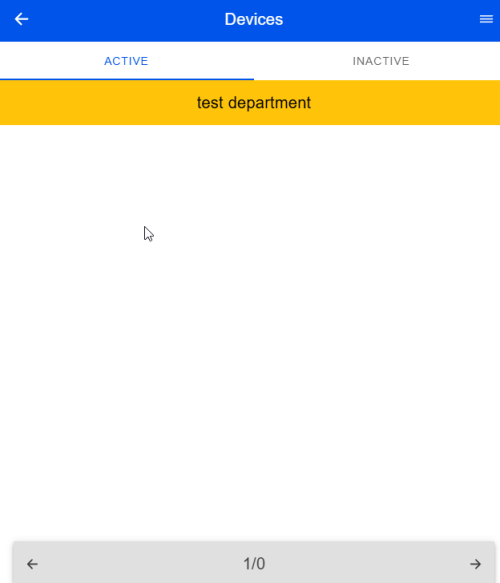
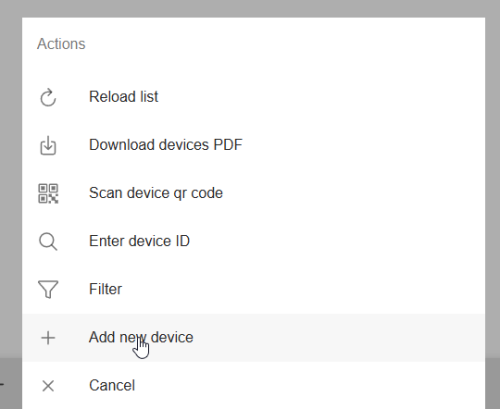
but we don't have any created device yet, we should it create via opening action menu
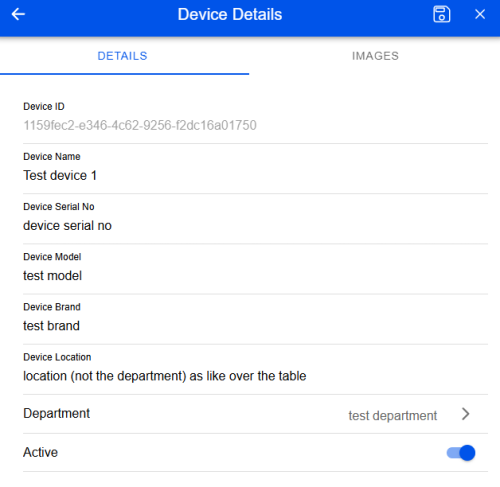
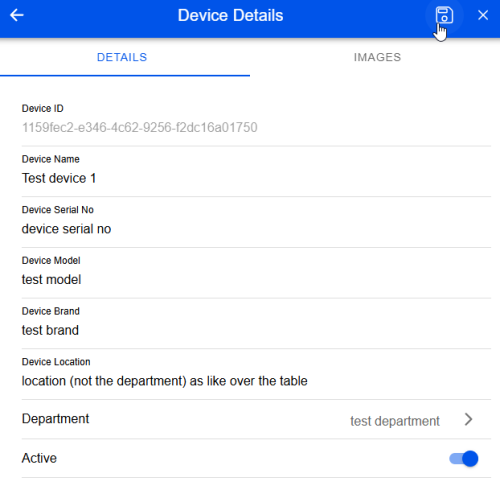
and now the application create a unique device id. then we can enter necessary information
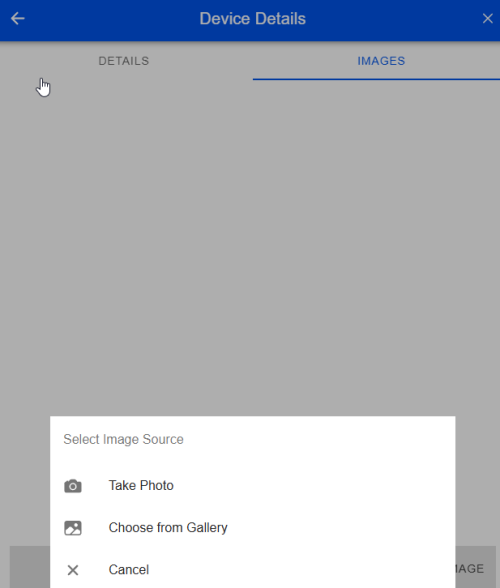
now we can upload some images/pictures for this device, we can use our gallery or we can use camera of pc, tablet or smartphone
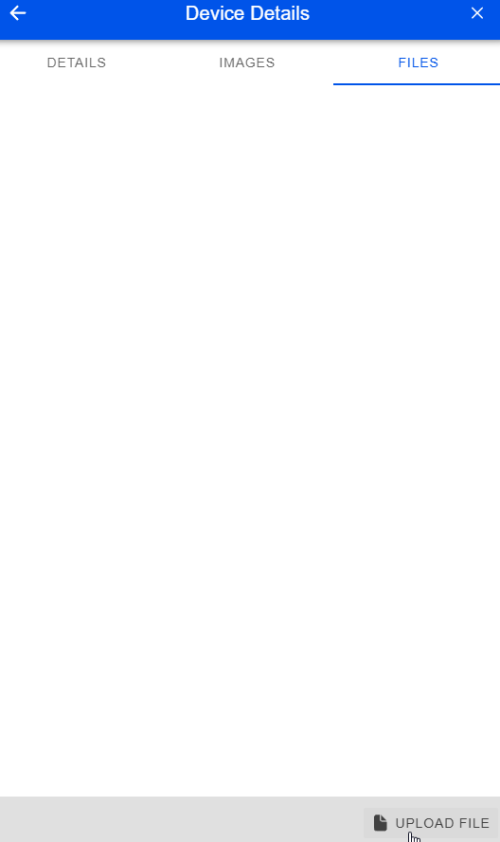
if necessary while creating or editing a device we can upload a file about this device.
then we can save our device.
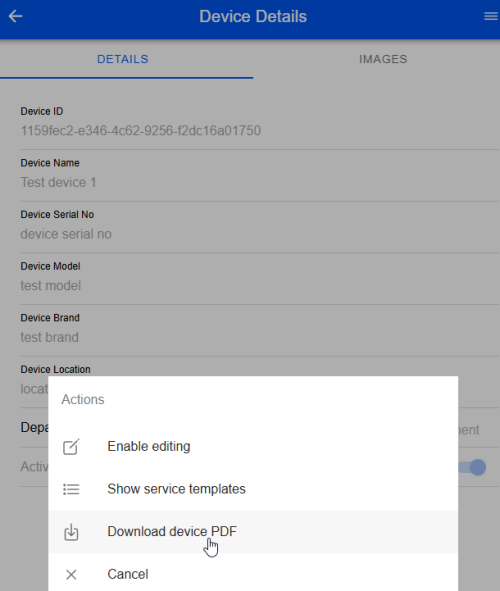
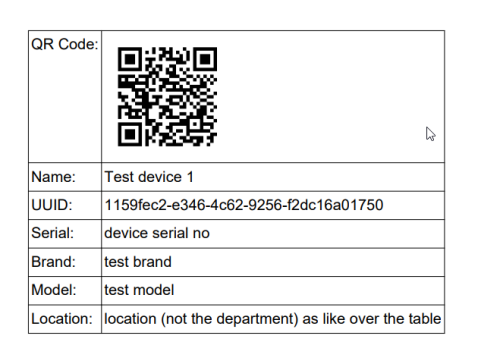
now if we want, we can download the qr code for this device to mark this device with qr code
then it seems like this.
Edit Device
To edit device we must enter first to the device which we want to edit for this we need to follow this menu points
company admin home » device management » select device or company admin home » departments » select department » show all devices » select device
then we can enable editing via action menu
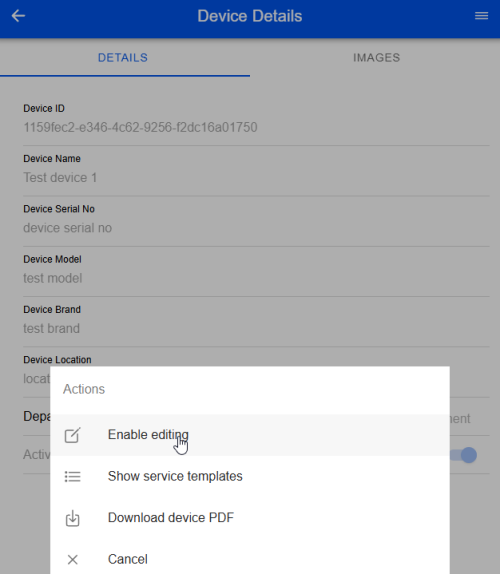
after changes we can save or via X button cancel this process
Defining Device as IoT
To define a device as IoT, we need to open first the device via
company admin home » device management » select device or company admin home » departments » select department » show all devices » select device
then we should open device IoT state via actions menu
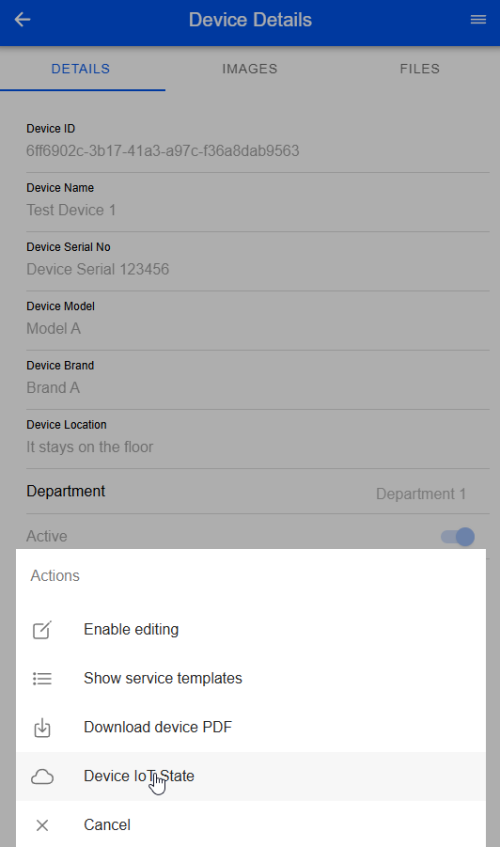
then we can define this device as IoT via enabling a switch
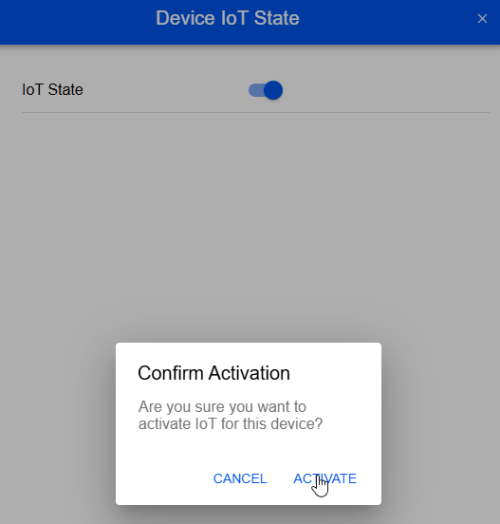
after confirming we are receiving a token/api-key for this device. So this device can create task in department, in which it stays.
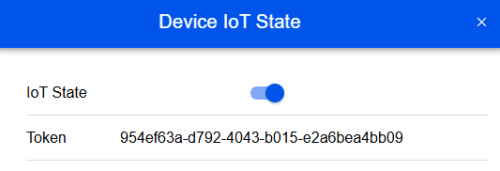
so we can use IoT endpoints with this token.
User Management
Create User
To create a new user for company in company admin view, we need to enter first to user management
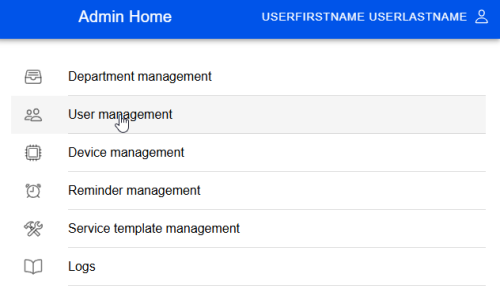
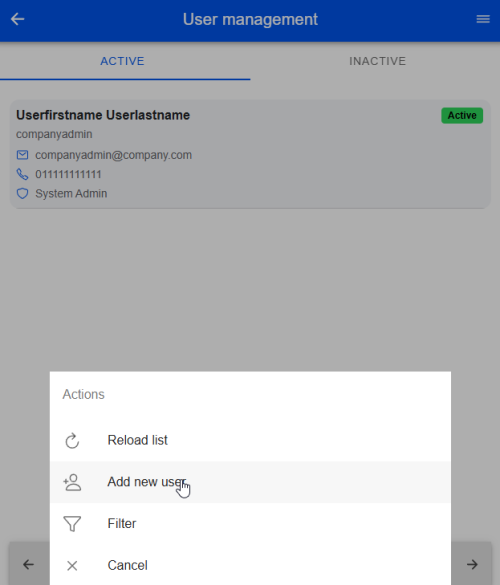
via action menu we can select add new user
So we can enter necessary information
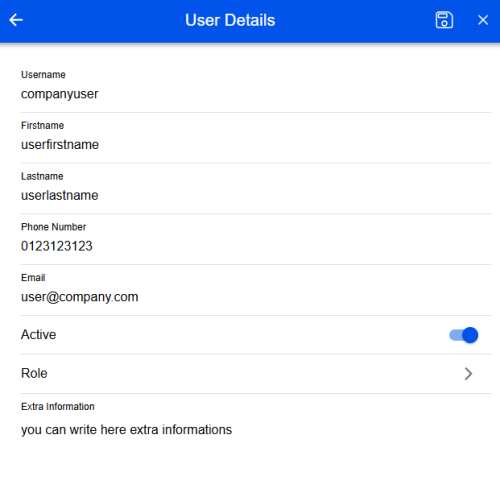 we should select a role for user too, we can define second system admin via this role or we can select a normal user to define this user as normal user which should use the service and task management. Then we can do save or cancel.
Edit User
To edit user we should enter user management.
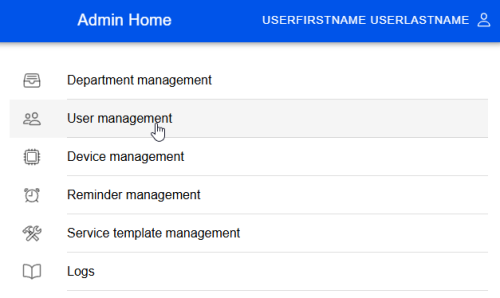
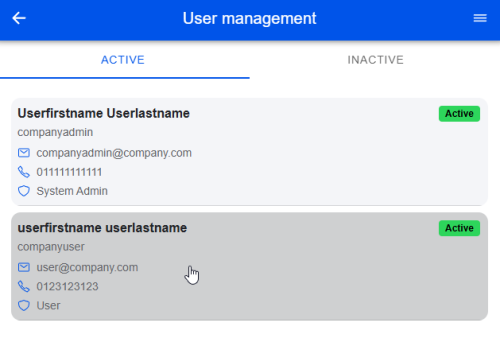
then we are selecting the user which should be edited.
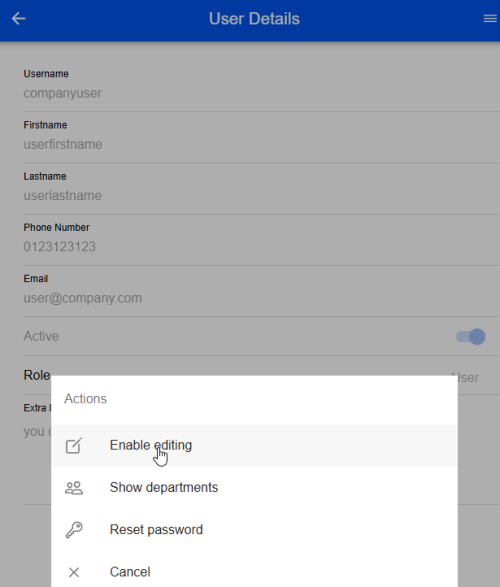
now we can activate edit mode for selected user via action menu
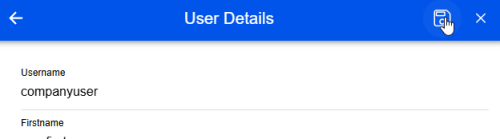
so we can make our changes and then we can save or cancel this process via X button.
Assign User to Department
we need to first move to user departments
company admin home » user management » select user, which should assign to department » action button, select show departments
then it seems like this
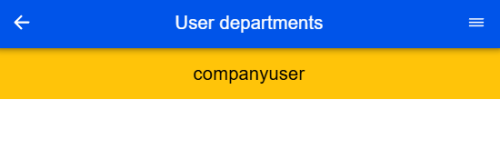
then we need to open action menu and click add new department role
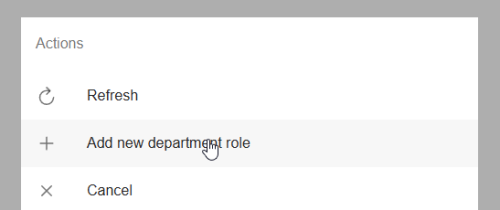
then you will be able to see like this
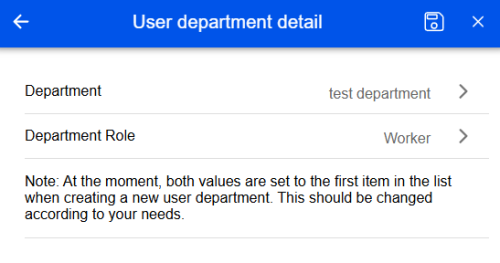
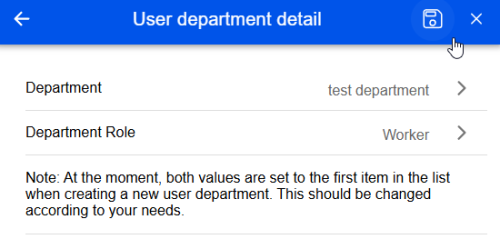
you can make your selection as you want; department can be select to which should be assign the user, then you should select role too, we have Worker, Chef, Manager roles, to manage service processing at the normal user side. After selections we can save or cancel this process.
Edit/Delete User Department
To edit user department, we should select first
company admin home » user management » select user » action button, select show departments » select department
then you will be able to see this:
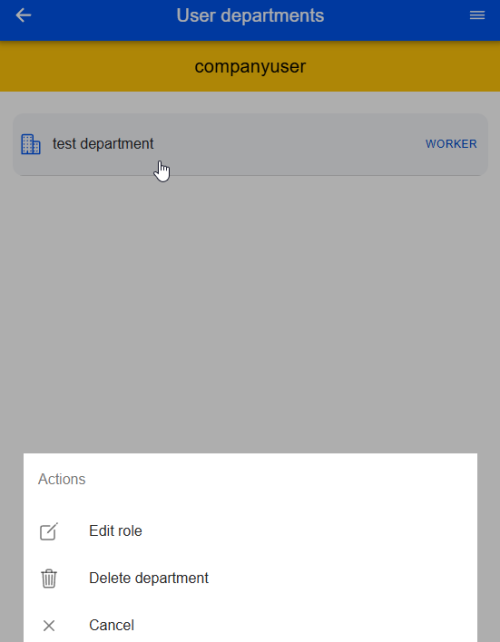
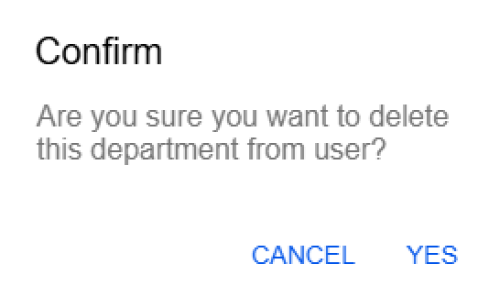
Then in this case you can edit/delete via clicking to this menu. To delete we can click on delete department then we will be asked about deleting.
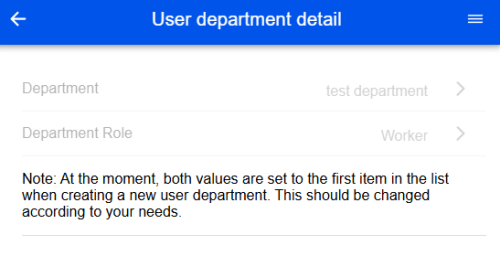
to edit we will click on edit. then we will this as disabled
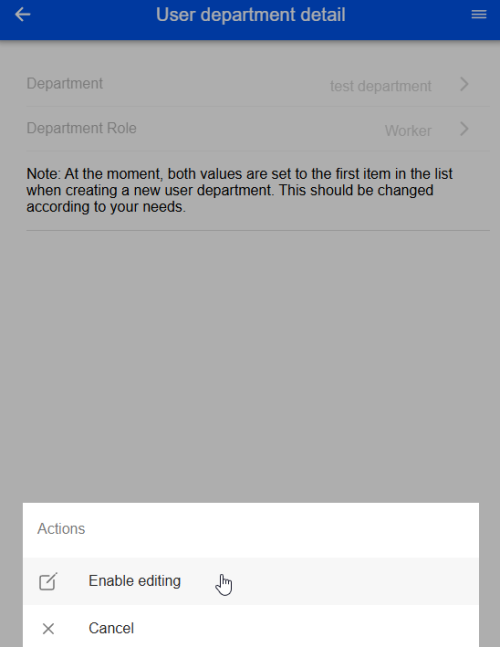
now we can enable this with action menu
after clicking the fields will be modifiable. after modification you can cancel or save the process.
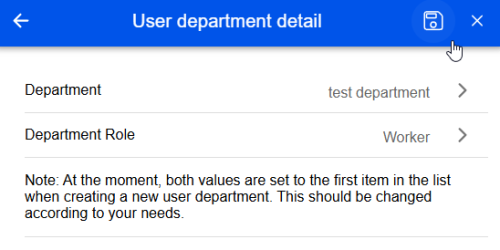
Reminder Management
Creating new Reminder
We can use reminders for service templates to enable reminder for device services about periodical services and so on.
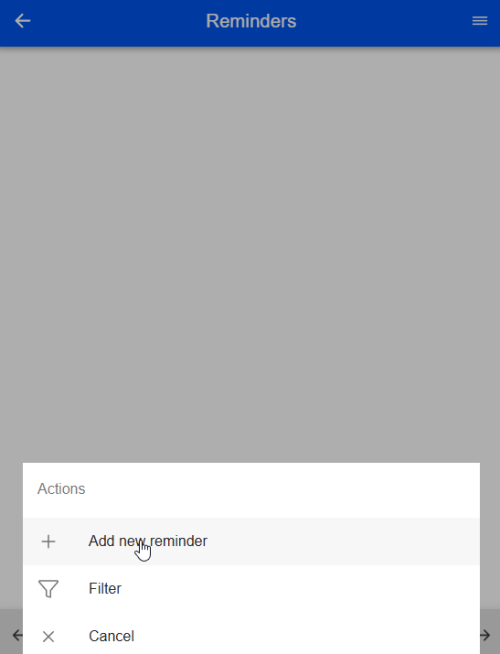
company admin home » reminder management. Then we can open action menu with menu button. After that you will see like this
then we can enter the reminder details as we want. After entering we can save or cancel this process.
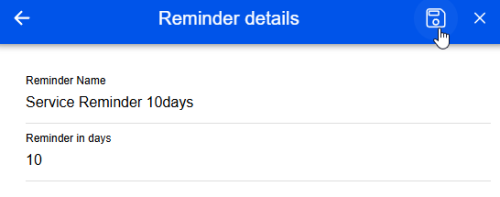
Edit/Delete Reminder
We need open first the reminder.
company admin home » reminder management » select reminder
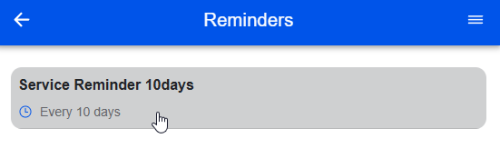
if we click on reminder we will be able to see this action menu
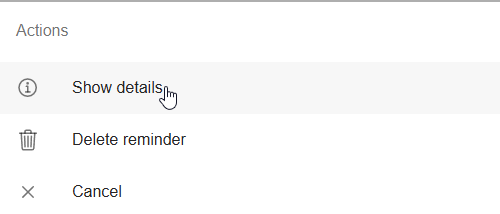
if we want delete this reminder, we can click on delete reminder button then system will ask us, that we want delete or not. To edit this reminder we should open show details.
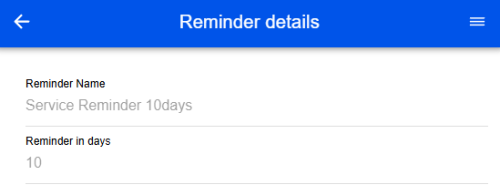
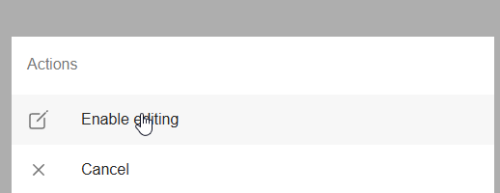
at the first we are seeing that the fields are disabled. to enable this we should open a action menu then we should do enable editing
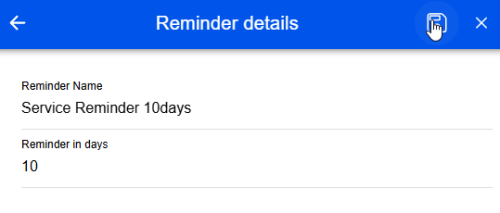
After all fields are activated then we can modify this information then we can do save or cancel.
Service Template Management
Create new service template
We need to open first the service template management menu.
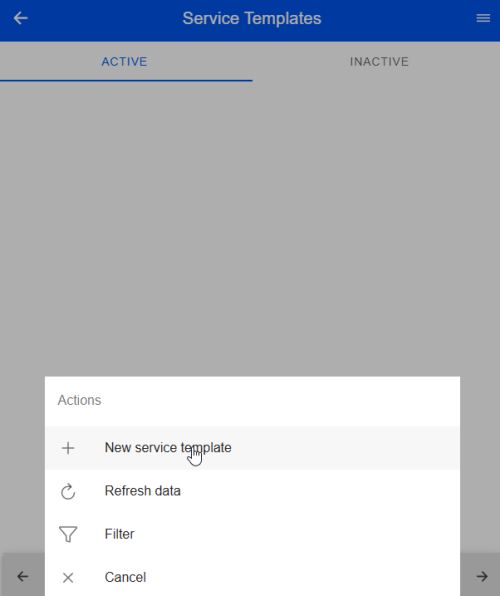
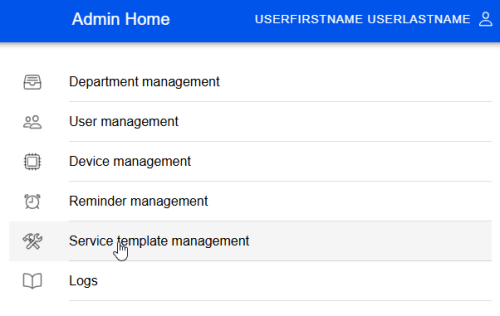 And then we must open the action menu and click on new service template
Now we want enter the information what we need to create this service template.
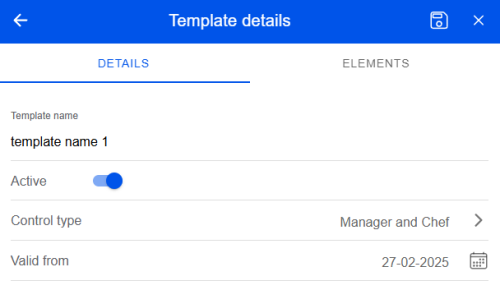
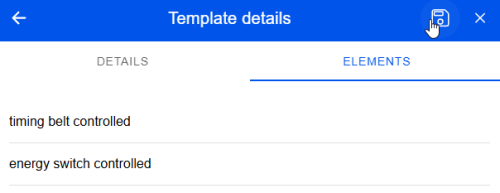
What the necessary is, the valid from must be selected, it means from which date this template will start to be used. On the other side we must select the control type too, we have here manager and chef, manager only, chef only and none. It means, if the employee creates a service, this service should be controlled or not. if yes, then we should select via control strategy, from which types of employees this service should be controlled as like only from manager or chef or both of them. Now we should add the service elements. This service elements describes which services should be done while doing a new service. You can check this at he next picture.
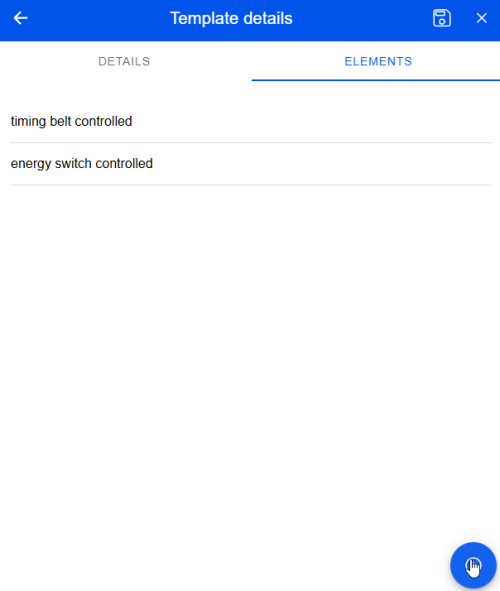
you can use add button with plus symbol at the bottom right, to add new service element. At the last we can save or cancel this process.
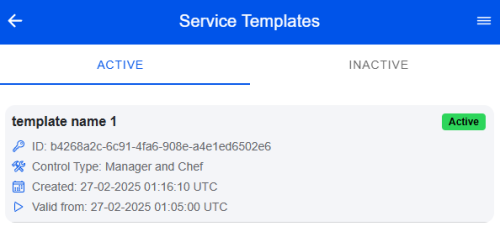
 now you can see at the service template list view the created service
Edit Service Template (Creates new version of service template)
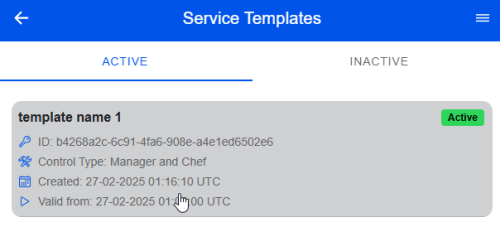
We should enter first the last version of service template which we want to edit. To open service template
company admin home » service template management » select service template
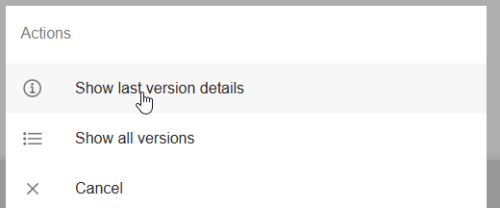
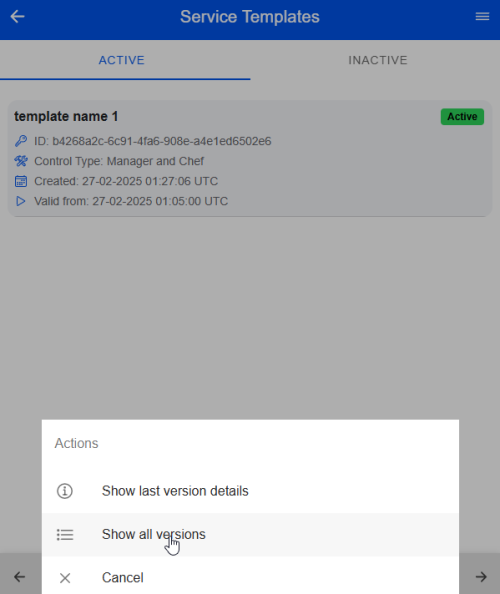
 then we should select at the opened action buttons show last version details.
when this last version details of service template is open, then we should activate the editing via action button
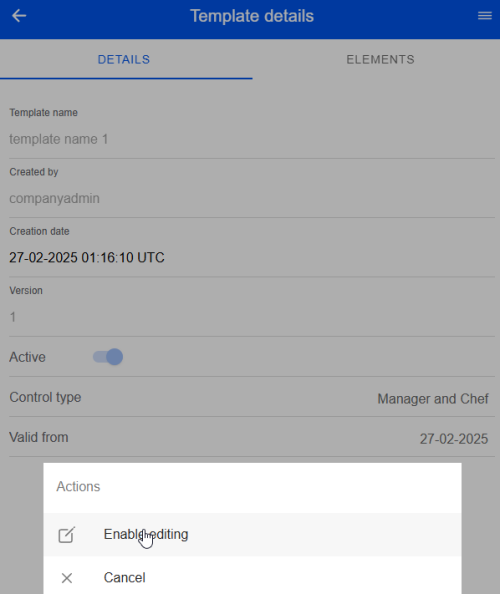
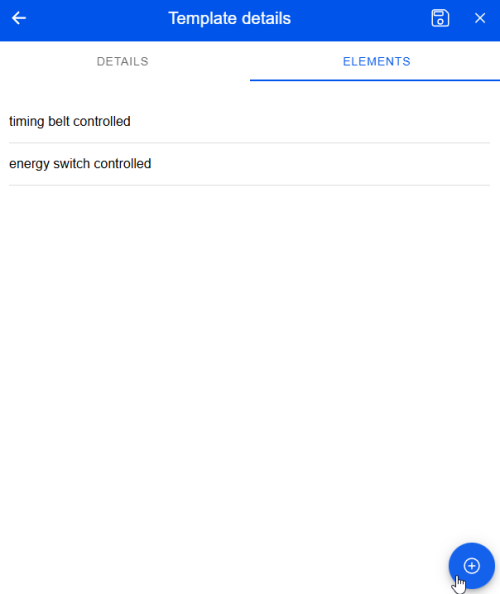
Now we want add new element via plus button
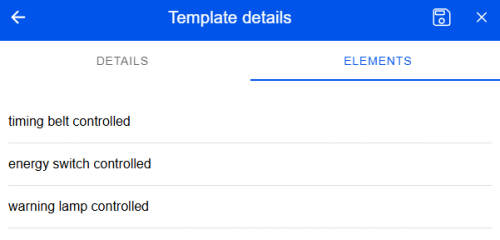
now we did added new element
and we want save this process
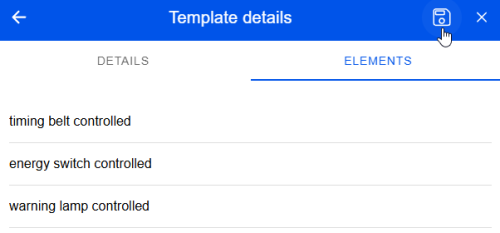 after saving the editing will be disabled and you can see under details the new version of service template
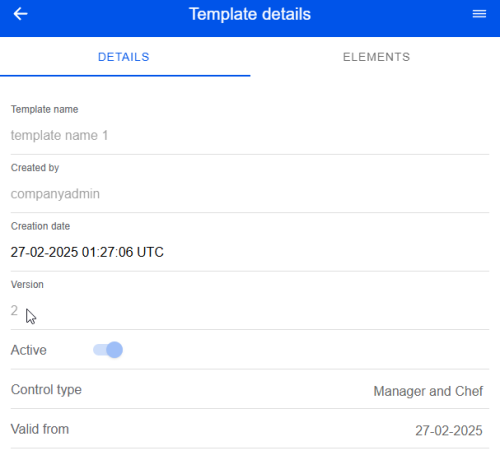
Show All Service Template Versions
We need to select first the service template. To show all service template versions we should select service template via company admin home » service template management » select service template
now you can see all versions of this service template
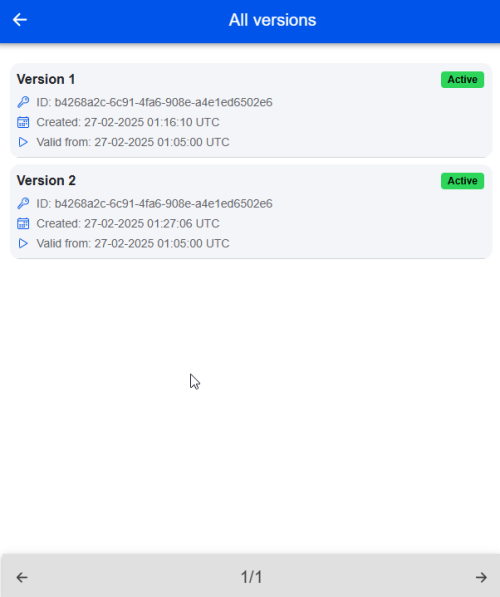
Then you can click on version which you want to see. You can only show this information but you can not edit any of this versions in this way. You can edit only the last version of service.
Assign Service Template to Device
To be able to assign service template to device, we should open first the device via company admin home » device management » select device or company admin home » department management » select department » open action button and show all devices » select device
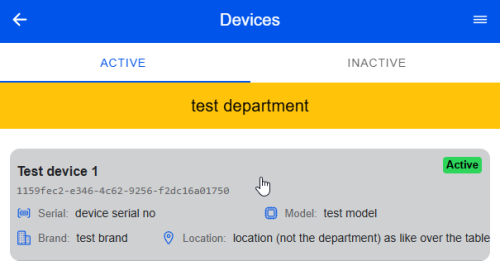 Now via actions button we selecting show service templates
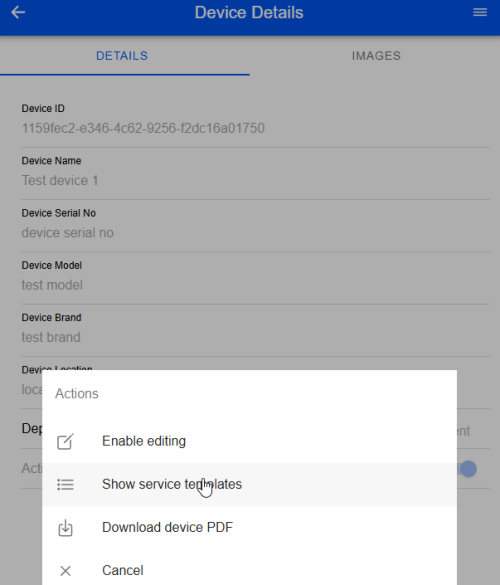
Then we can open the service template assigning page via assign new service template button
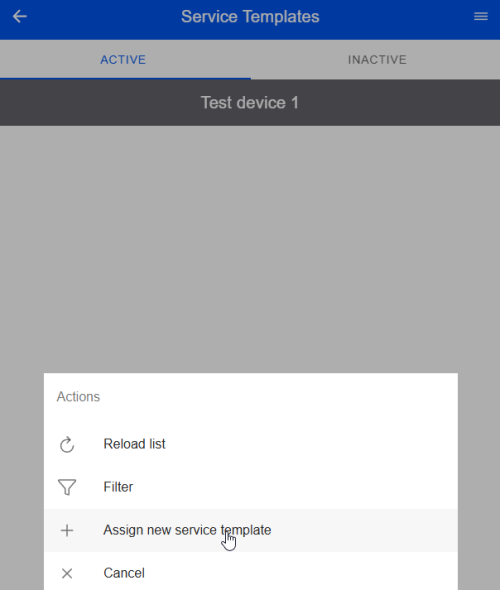
On the assignment we should select first the service template, which we want to assign to device
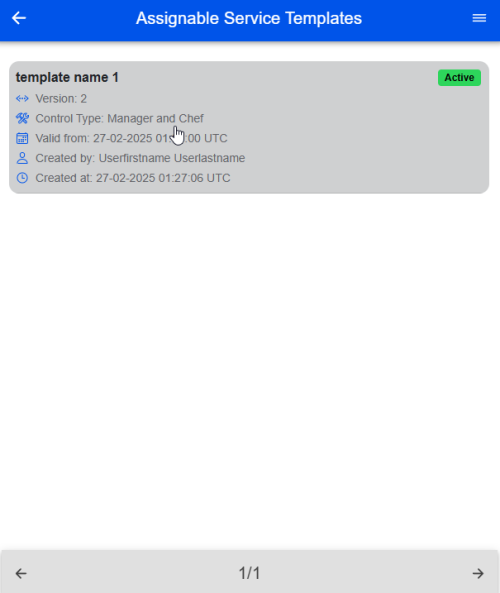
after selecting you can see assign details
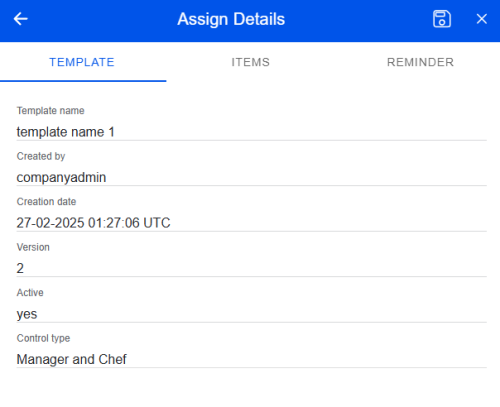
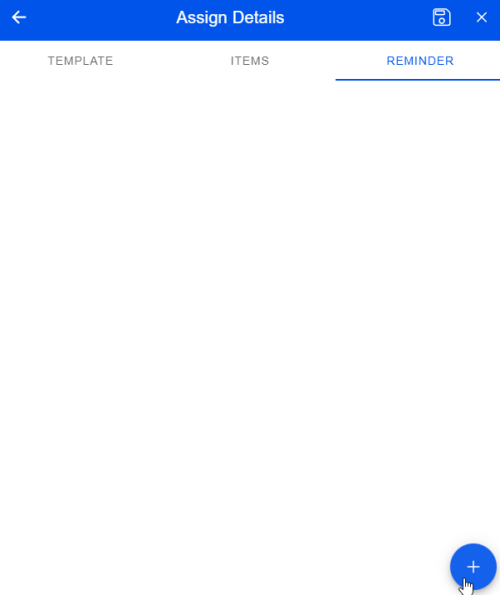
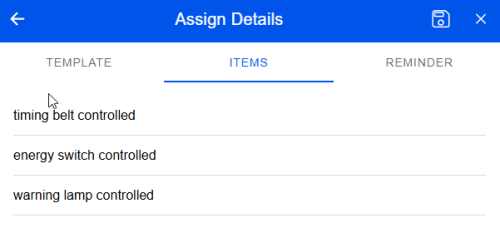 On the reminder tab, we can add new reminder for this service.
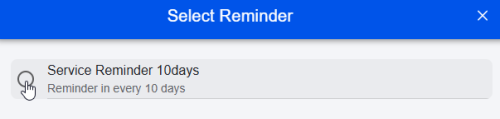
and now we can select service reminder via clicking on radio button
after selecting you can see selected reminder details
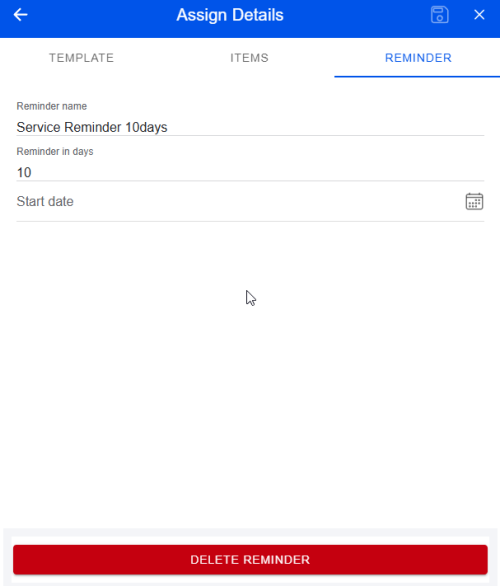
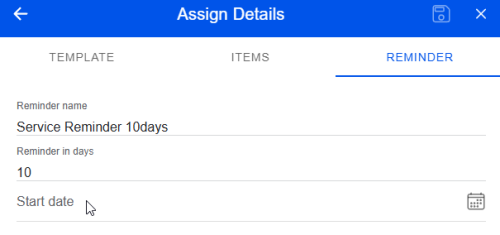
now we must select a start date for this reminder, so we are enabling the reminder engine to send reminder emails. to select this, we should click on start date
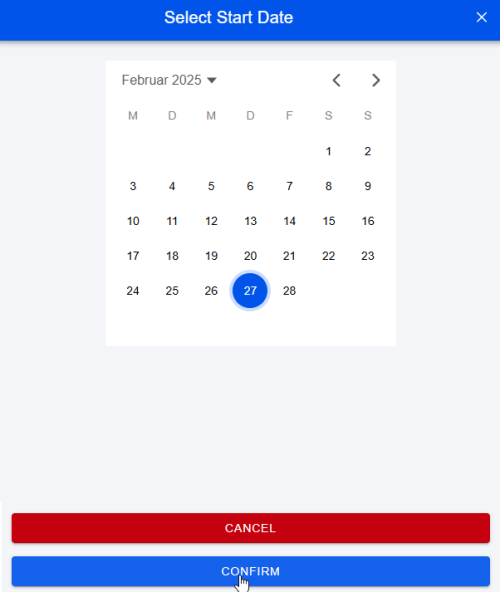
now we can select date and confirm
now we did define all information. now we can save or cancel this process.
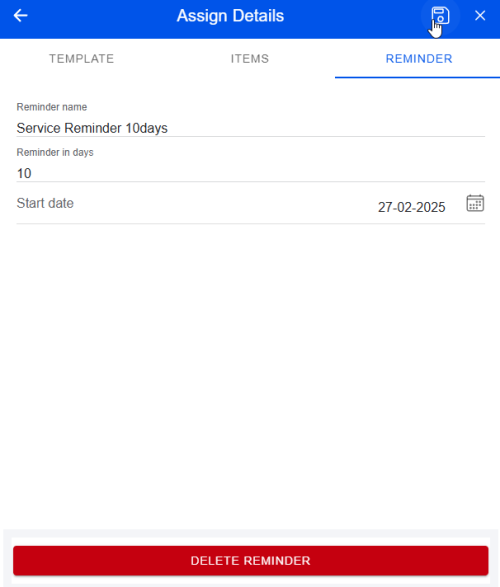
After saving you can see in device service templates the saved service template
Edit/Delete Coupling of Device - Service Template
To be able to edit the coupling of device - service template, we should open first the device via company admin home » device management » select device or company admin home » department management » select department » open action button and show all devices » select device
then we should open show service templates via action menu
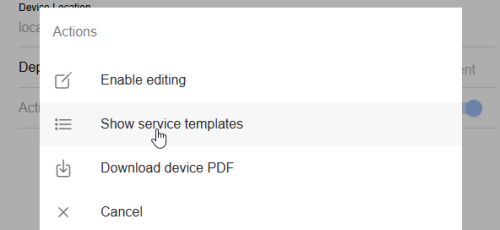
at the list of assigned service templates we should select a service template coupling
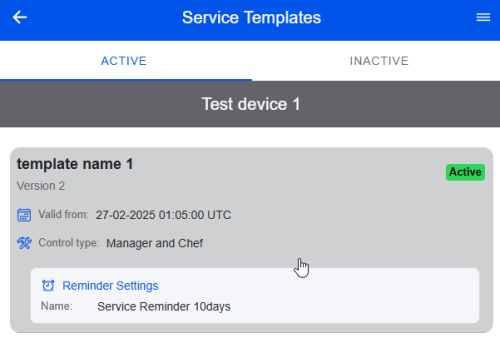 and we should click on show details or if you want you can delete this coupling via delete selection
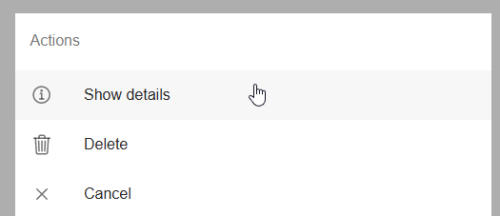
if show details is selected then we can enable editing via action menu
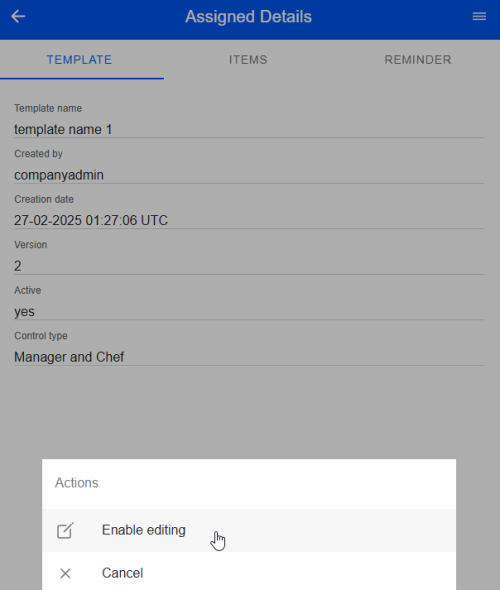
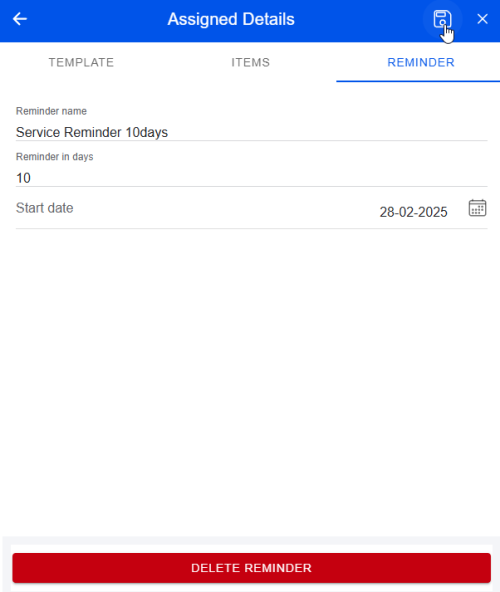
when the editing enabled is then only reminder editing is possible, you can change to any reminder and you can change start date too. After changes you can save or cancel the process.
Showing Logs
The logs can be reached via clicking on logs selection in company admin home.
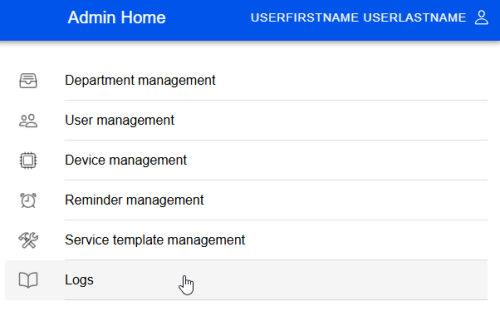 then it shows like this
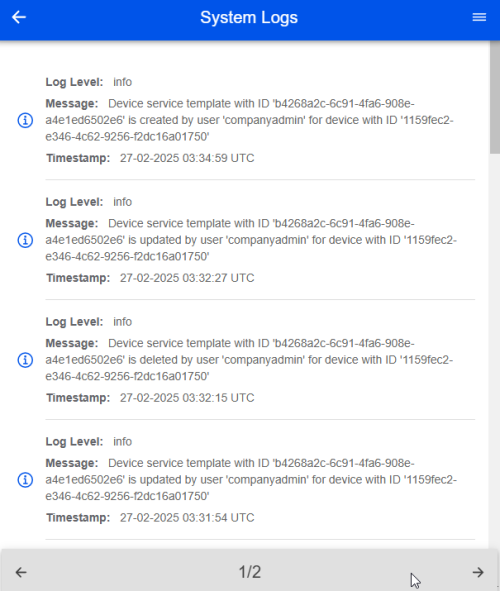
it gives a ability to click on it
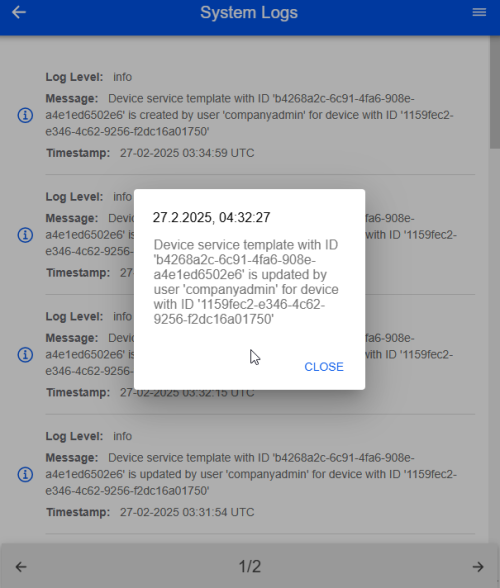
Necessary Notes
- If any service template is assigned to device and this service template will be updated to new version then this assignment works with new version. It means, if you deactivate a service template, you can see in assignment but the service cannot be able to do with this service templates. If you add new elements, old services will be shown with old service templates and new services will be shown with new service elements.
- Every page has max 20 items