This is an old revision of the document!
Table of Contents
Back to Tracker Application Start Page
Tracker System Admin Management
Company Creation
Tracker application allows to use for each company isolated environment. It means, every company has their service templates, devices, departments and users. No one of them can be reached from another company. Now how you can use this creation process will be described here:
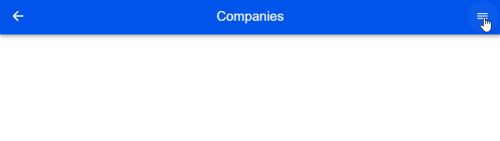
After login process we must select at the menu the company management selection

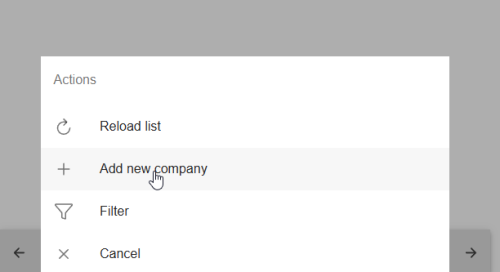
After that we should open action menu
then add new company
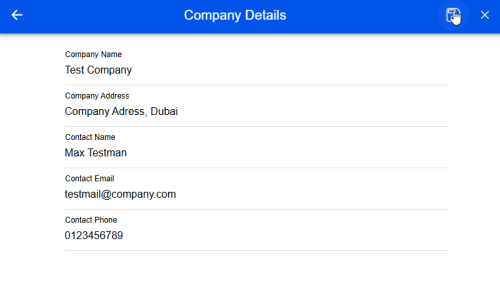
then after new company page is opened, we are entering valid company information, which we want to create. Then save button will be enabled for saving.
Edit Company
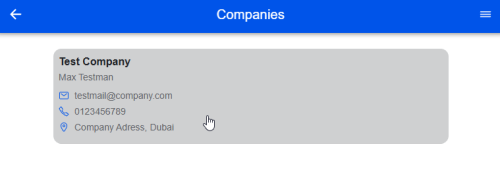
You can edit the company so, that you need to open first the company.
system admin home » company Management » select Company
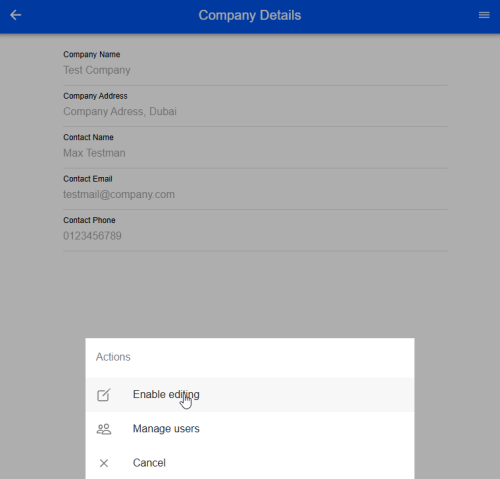
After opening the company you can open the action menu via button at top right
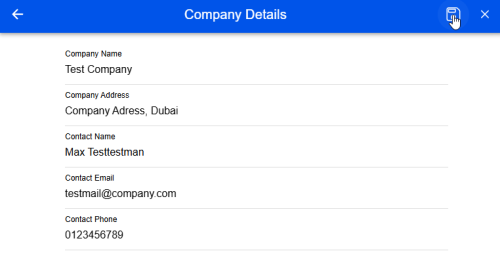
Then you can edit the company as you want and you will be able to save this information, but if you want cancel this process you can click X button too
User Management for Company
To add or manage company users, we should open first company list, which we did create before.
system admin home » company management » select company
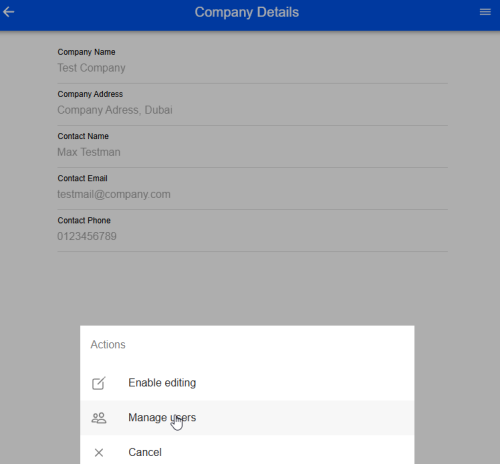
Then we should open action menu and click to manage users
And now you can see initially created iot-user. Please do not edit this user.
Then we are opening action menu and you will be able to see add new user.
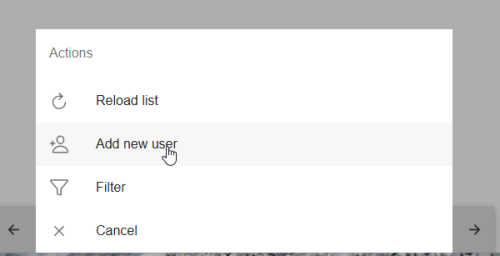
if you are creating first user, this user should be a company admin user, while without company admin user you can not create any service templates, department and so on. company admin user as the name called is the admin user for this company to manage service templates, departments, devices users for this company and so on.
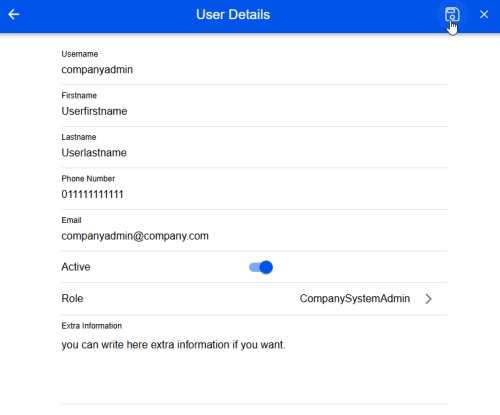
After entering valid information for this user the save button will be able to click.
At the initial the user will have the password like this: username1234 in our case i did create a user with companyadmin username then it has password as companyadmin1234, which can be changed later.
Edit User / Password Reset
To edit user you must first open the user details, which do you want to edit.
company admin home » company management » select company » open action menu » manage users » select user which should edit
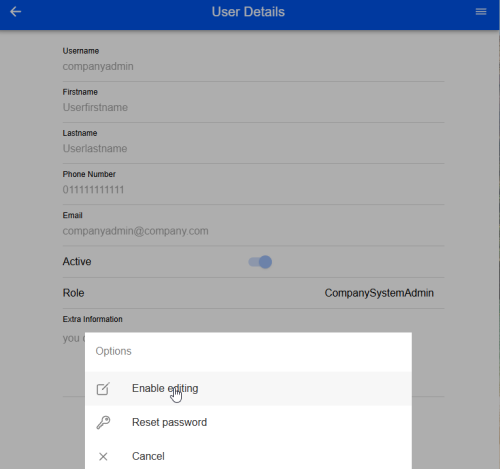
Now you can edit also reset password for user, if you want do reset then password will be reset to initial password.
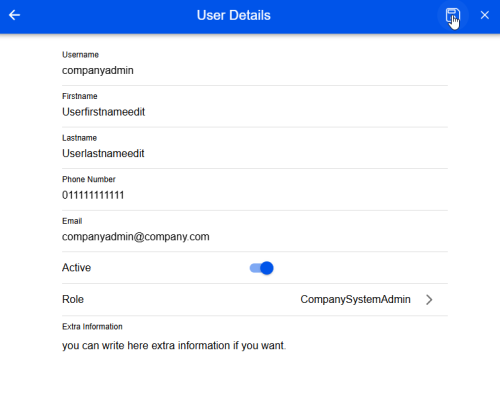
After editing you will be able to save this information, but if you want cancel this process you can click X button too
System Logs
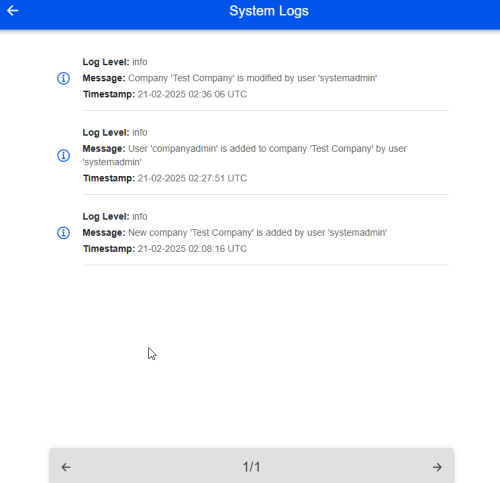
You can reach the logs for system admin interactions under
system admin home » logs